
Is Castle APK Safe to Use? Features, Risks & Safety Tips
You may remember coming across an APK file if you’ve ever seen one for an app that wasn’t accessible on the Play Store; maybe a friend gave you a link or a website offered you the “premium unlocked” version of an app that you previously used. Before you tap the install button, it’s valuable to know what exactly you’re getting onto your phone.
The guide will demonstrate to you what an APK file is, describe why installing one is different from downloading it from the Play Store, and list the exact checks you should make before you agree to put any Castle APK on your device.
What is an APK file?
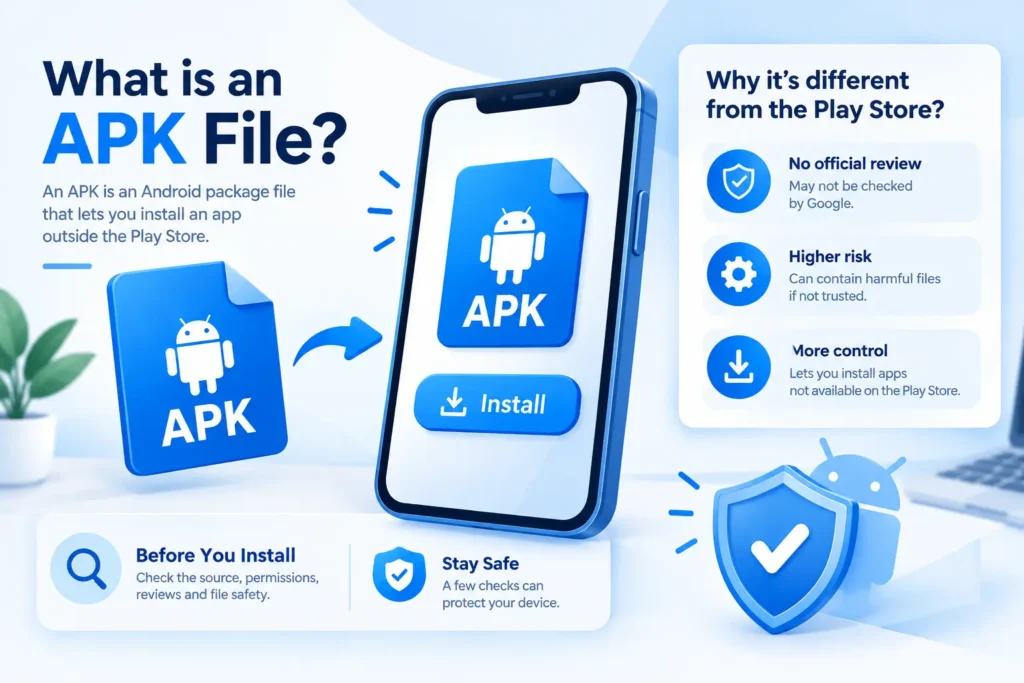
APK is short for Android Package Kit and is just the file format that Android employs for installing applications. All the apps on your phone, as well as those gained from the Play Store, were at one time in the form of an APK file. The Play Store just takes care of the downloading and installation for you in the relevance.
What is generally meant when people mention to “installing an APK” is downloading the file from a source other than the Play Store and then installing it themselves; this process is known as sideloading, and it is the one that alters the risk profile.
Why Sideloading Transfers More Risk Than the Play Store?
All applications that are submitted to the Play Store are subject to Google’s review process and are checked by Play Protect both before and after they get onto your phone. While that doesn’t mean the Play Store is perfect, it does indicate that another set of eyes looked at the app before you even saw it.
An APK obtained from a random website doesn’t have any of those checks. Neither have people looked at it nor verified that the developer is the one they say they are. The file might be precisely what it states it is or it could be a modified version with extra code included. You cannot tell just by looking at the download page.
It doesn’t follow that all APK files available outside the Play Store are dangerous; in fact, a number of legitimate developers, including some big companies, provide direct APK downloads for use in testing or in those regions where their app isn’t listed. The problem here is that the security net is no longer there, so it’s up to you to check the file.
Signs an APK Might Be Insecure
Even before you download a file, the source will give you a great deal of information. Be on the lookout for these warning signs.
The site has a lot of pop-up ads, fake “download” buttons, or redirects which take you to a place you didn’t ask to go to. Genuine download pages don’t require five decoy buttons in order to trick you into clicking the wrong one.
The website promises something that sounds far too good to be true, for example by letting you get a paid app free or by getting rid of all the ads from a service which normally needs a subscription. This usually indicates that the app has been modified, and it’s impossible to know what else may have been changed together with it.
There isn’t a clearly given developer name, there is no privacy policy, and there’s no means by which one can get in touch with the people behind the app. Genuine developers want to be found. Generally, a website that omits this information has some kind of reason for doing so.
It seems that the file size is incorrect. In the case of an application which is usually a lightweight utility, if the APK you are downloading is many times larger than it should be, then extra material may have been included.
On the download page, reviews and comments refer to crashes, odd permission requests, or ads that appear outside of the app. One of the most reliable hints that adware has been included in the file is the arrival of ads when the app is not even open.

How to Check an APK Before You Install It
The procedure should be surveyed each time, no matter whether the app in question is a game, a tool, or a streaming app.
- Step 1: Check the Source
- Step 2: Check the File Hash or Use a Scanner
- Step 3: Look at the Permissions Before Installing
- Step 4: Install with Play Protect Scanning On
- Step 5: Watch the App’s Behavior After Installing
- Step 6: Keep the App Updated From the Same Trusted Source.
If you choose to continue using an app that you have installed from an unofficial source, you should update it from the same source that you first trusted, not from a new link which is later sent to you by someone else. A typical method is to first distribute a clean version in order to build trust, and then release a malicious ‘update’ via a different channel.

Permissions That Deserve Extra Attention
Not all the permissions are of equal risk, and some should make you stop and think about them if the APK asks for them without giving a clear reason.
| Permission | Why It Matters |
|---|---|
| SMS access | Can read one-time passwords and verification codes sent to your phone |
| Accessibility service | Gives the app deep control over what it can see and tap on your screen |
| Device admin | Makes the app very hard to uninstall and gives it system-level control |
| Contacts | Can be used to harvest personal data or spread links to people you know |
| Install unknown apps | Lets the app install additional software without asking you again |
When an application asks for several of them at the same time and the reason it gives for doing so doesn’t require them, then that combination is one of the most obvious warning signs you’ll encounter.
What to Do If You Already Installed a Risky APK
- Don’t panic if you’ve installed something and are now unsure whether it was safe, but take swift action.
- Uninstall the app immediately by going into Settings and then Apps. If the app won’t uninstall in the usual way, check the Settings section under Security for Device Admin apps and take out its admin privileges first before making another attempt to uninstall it.
- After that, carry out a complete scan using Play Protect or a reliable mobile antivirus app to detect anything the app may have missed.
- For any accounts to which you had logged on while the app was installed—particularly email, banking, and social media—make sure that you change your passwords, as some malicious apps keep a record of what you type.
- Look through your phone bill and check the app permissions for anything out of the ordinary, such as premium SMS fees or apps that you didn’t install yourself.
Quick Safety Checklist
| Check | Safe Sign | Warning Sign |
|---|---|---|
| Source | Developer's own site or a well-known app repository | Random blog, forum link, or ad-heavy site |
| Scan | Clean result on VirusTotal or similar scanner | Multiple antivirus engines flag the file |
| Permissions | Match the app's actual purpose | Ask for far more access than needed |
| Reviews | Real user feedback describing normal use | Complaints about crashes, ads, or strange behavior |
| Updates | Delivered from the same trusted source | Sent through a new or unofficial link later |
Simple Settings That Keep You Safer
Most of the work is done for you through a few settings on your phone.
Make sure that the option ‘Install unknown apps’ is switched off for all apps except for the one browser or file manager that you actually use to install APKs, and then switch it off again after you’ve finished. On most Android versions, this setting can be found by going to Settings, then Apps, then Special app access.
Make sure that Google Play Protect remains switched on at all times since it scans applications in the background regardless of whether they came from the Play Store or not and it will give you a warning if something appears to be known malware.
Make sure that your Android system is up to date because security updates plug up the vulnerabilities that malicious applications are specifically designed to take advantage of, which means that an out-of-date phone is more vulnerable regardless of the apps you have installed. Before installing the latest version of APKCastle, first check its relevant requirements.
Frequently Asked Questions
No, installing an APK by itself is not illegal. It is simply a different way of installing an app. What can create legal risk is the content of the app itself, for example if it streams copyrighted movies or shows without permission from the rights holder.
Yes. As long as Play Protect is turned on, it scans apps from any source, including ones you sideload, and it will flag known malware.
It is a strong first check but not a guarantee. VirusTotal compares the file against known malware signatures, so brand new or well hidden threats can sometimes slip past it. Combine it with checking the source and reviewing permissions for the best picture.
Sometimes a legitimate app uses code patterns similar to malware, like accessing system settings for a valid feature, and gets flagged by mistake. This is called a false positive. If only one or two engines flag a file and the developer is well known, it is usually not a cause for concern, but it is still worth double checking.
Only if you trust the developer completely and understand exactly why the app needs it, such as a screen reader or an automation tool. Accessibility access is one of the most powerful permissions on Android, and it is frequently abused by malicious apps to read what is on your screen and simulate taps.